
OptionsApp — Overview
What OptionsApp is: a Windows app that trades your exported portfolio automatically on Interactive Brokers — including on a paper account first, which almost nothing else lets you do.
The Engine is where you decide what to trade. OptionsApp is one way to execute it — automatically, on your own broker account, without you writing code or sitting at the screen at 15:27. This section is where we document how to run it well; it will grow over time. Start here for what OptionsApp is; the Securing your VPS page covers the machine it runs on, and Connecting TWS & IBKR covers a reliable connection.
OptionsApp is external software — not part of Cashflow Engine. It is a separate product from a separate company (optionsapp.de). We document it here because it pairs well with the Engine, and we can help you get it running — but we don't build it, own it, or control it. You use it under OptionsApp's own terms and your own responsibility, on your own broker account.
You don't have to set this up alone
Getting OptionsApp connected to Interactive Brokers is the fiddliest part, and you don't have to do it by yourself. There are three places to get help:
- OptionsApp's documentation — their own setup and TWS videos, searchable. (OptionsApp's channel.)
- OptionsApp's Discord — their own community and support team. (OptionsApp's channel.)
- Our English-speaking support — if you sign up to OptionsApp through our link (their homepage, where the banner is the 30-day trial), we help you set it up directly, in English, in our own Discord.
The first two are OptionsApp's own channels. The third is ours: signing up through our link is what lets us give you that extra, English-language setup support on top — you'll find the OptionsApp support channel in our Discord after you join.
What OptionsApp is
OptionsApp (optionsapp.de) is a specialised Windows desktop application for fully automated options trading. In its own words, it executes user-defined trading strategies precisely, rule-based, and without manual intervention — and it deliberately does not develop or recommend strategies. It only handles their clean technical execution, monitoring and documentation. It runs permanently connected to Interactive Brokers' Trader Workstation (TWS) and places the orders there.
That division of labour is the whole point:
- The Engine decides — you design and stress-test a portfolio of SPX 0DTE strategies here.
- Export to OptionsApp hands
it over — one
.jsonfile. - OptionsApp executes — it schedules the entries, watches the entry conditions, places and manages the trades on your broker.
The two are separate products from separate companies. The Engine never touches your broker; OptionsApp never sees your Engine data except through the file you export.
Who it works with
OptionsApp connects through Interactive Brokers' TWS, so it works for anyone on IBKR's infrastructure — and that's a broader group than "an IBKR account". Several European brokers operate as introducing brokers of Interactive Brokers, giving you IBKR's platform and TWS under their own brand: CapTrader, LYNX, and WH SelfInvest among them. If your account is with any of these — or any other IBKR introducing broker — you're on IBKR and TWS, and everything here applies unchanged.
One hard requirement: OptionsApp runs on Windows only. It is a Windows desktop application — there is no Linux or macOS build. In practice most people run it on an always-on Windows machine or a Windows VPS, so the automation is up whenever the market is. (You can drive that Windows machine from a Mac; the app itself just has to live on Windows.)
A quick walkthrough
Once a portfolio is imported (see OptionsApp export for the export and import steps), OptionsApp organises around three areas.
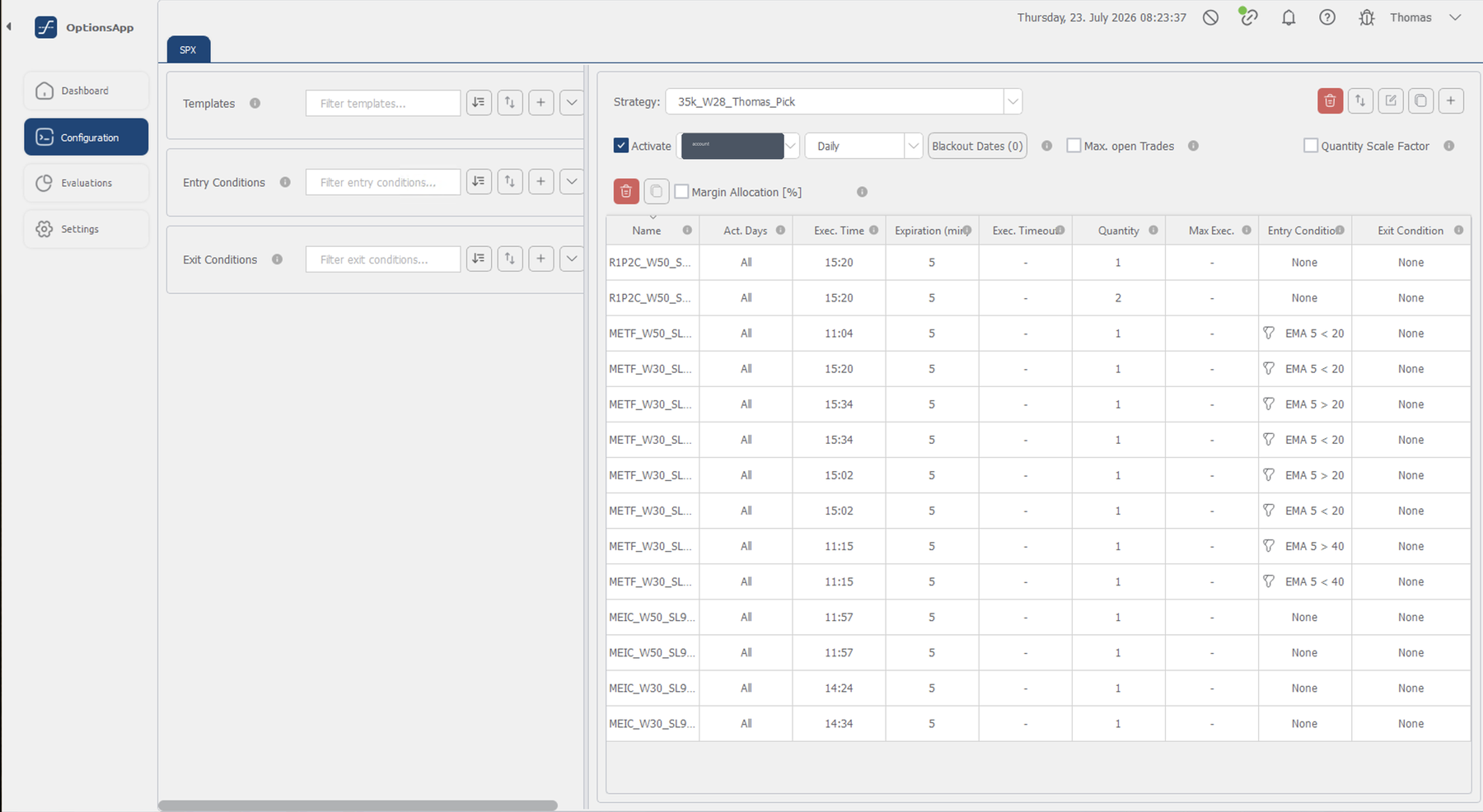
Configuration — where your imported strategies live. Each strategy carries its execution time, its quantity, and its entry conditions; iron condors arrive as a call side and a put side, the shape OptionsApp manages natively.
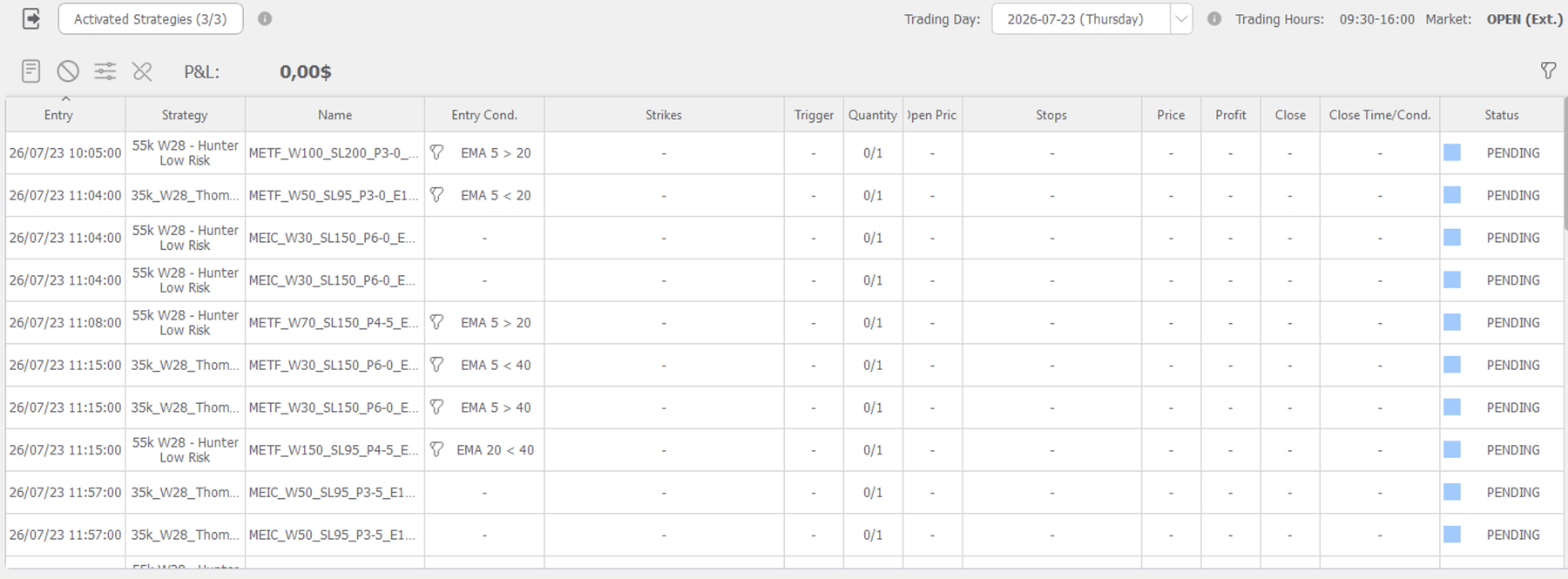
Dashboard — the live view for the trading day. It shows the day's P&L, the premium collected, and a status panel counting every trade through its lifecycle: pending, running, closed.

Below the cards, the schedule for the day: every trade that will enter, with its entry time, strategy, and the entry condition it's waiting on (METF variants carry their EMA trend gates; MEIC entries are unconditional).
Evaluations — where completed trades and their results are recorded, so you can compare live execution against the backtest that produced the portfolio.
How a strategy is defined in OptionsApp
Two building blocks make up each imported strategy, and the Engine's export fills them in for you:
- A Trade Template — the trade itself. For a credit spread it holds two legs (a Sell and a Buy of the same side), the ratio, 0 DTE, the premium target the short leg is sold at, and the long wing's width (set as an offset, with Use Closer Strike). Its P&L Actions carry the stop loss — for these strategies, Percentage of Premium at your stop level (e.g. 95%). An Entry Behavior block controls how hard it tries to fill (number of attempts, wait between them, price to start at).
- An Entry Condition (optional) — the gate a trade waits on. METF variants carry an EMA condition such as SPX EMA 20 > EMA 40 on the minute timeframe, set as a Filter (checked once at the entry time). MEIC entries have none. The difference between a Filter and a Trigger matters and is explained on the connection page.
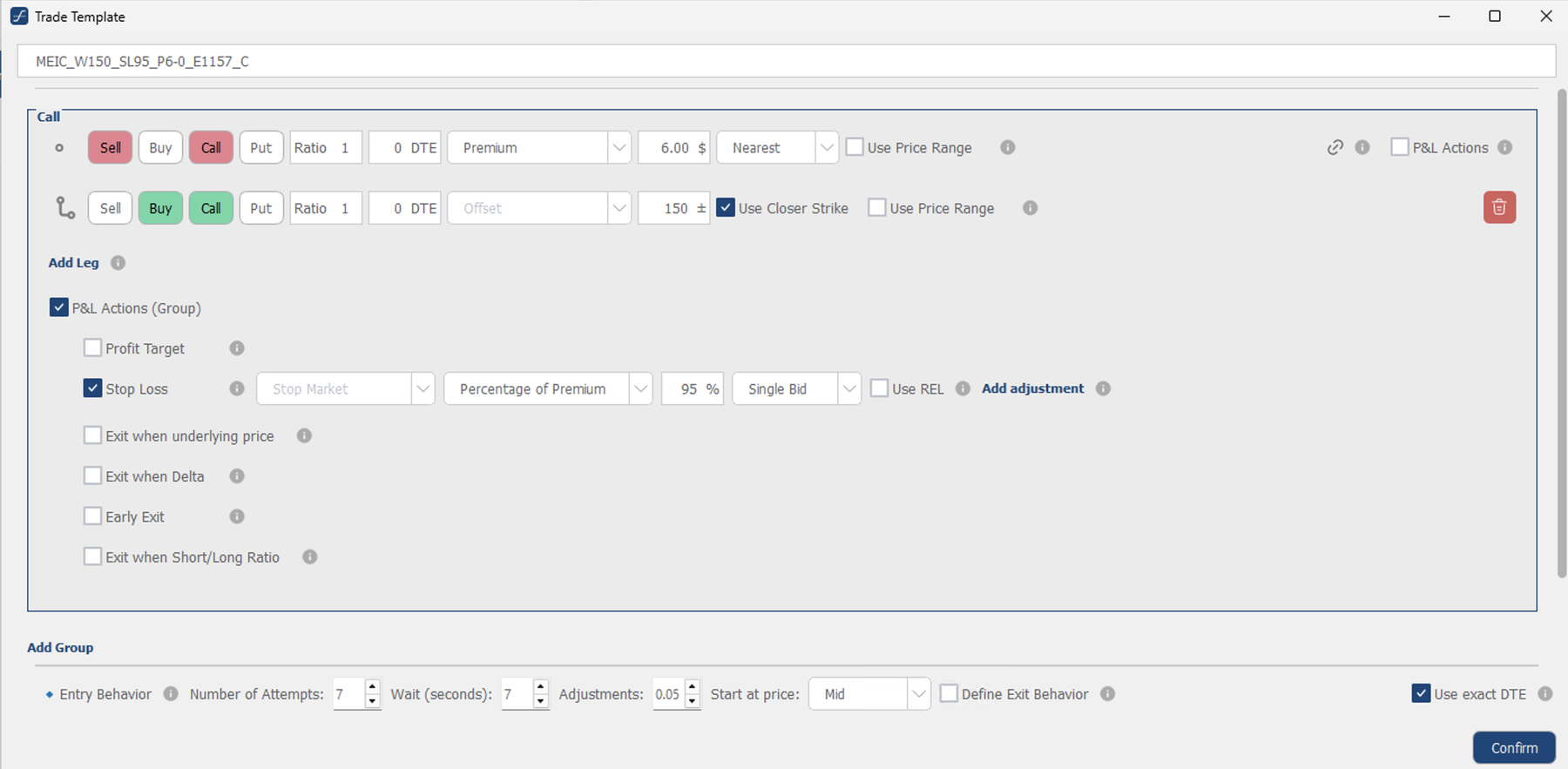
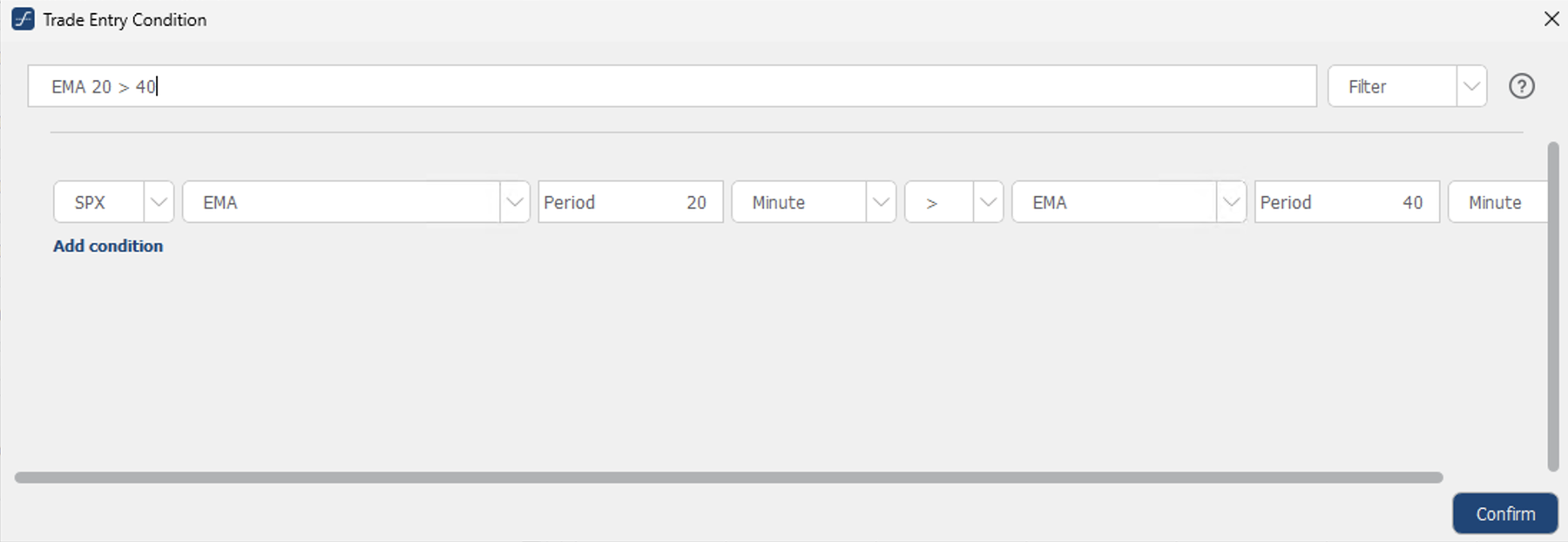
You rarely touch these by hand — the export writes them — but knowing they're there is what lets you verify a config does what you intended before you run it.
Paper trading — the part that's genuinely rare
Here's what sets this workflow apart: you can run the entire thing on a paper account first. OptionsApp connects to an Interactive Brokers paper account exactly as it connects to a live one, so you can import a portfolio, activate it, and watch it place simulated trades — real market data, real timing, real entry conditions, zero real money.
Almost no other automated-execution setup lets you dry-run your actual automation this faithfully. It means the honest answer to "does this config do what I think it does?" is not a guess — it's a paper run you can watch for a few days before a single real dollar is at stake. We consider this non-negotiable: paper first, always. The one catch worth knowing up front — an IBKR paper account needs its own market-data subscriptions, separate from your live account — is covered on the connection page.
Try it
OptionsApp offers a 30-day free trial. The link opens their homepage, where the banner is that 30-day offer: start a free trial (affiliate link — the app discloses the relationship at the point of export too). Their own setup and usage documentation, in a video-based knowledge base, is at optionsapp.de/docs.
And to say it once more: if you sign up through that link, our own English-speaking Discord support is there to help you get connected. The next step is Connecting TWS & IBKR.
Your risk, your account
OptionsApp places real orders on your real broker account. It is a separate product that evolves on its own schedule, and running any configuration live is entirely at your own risk — verify every parameter yourself, and start on paper. The full risk framing lives on the OptionsApp export page and applies here in full.
Related pages
Get the weekly 0DTE research email
Research notes and product updates, straight to your inbox. Unsubscribe anytime.