
Connecting TWS & IBKR
Best practices for connecting OptionsApp to Interactive Brokers: the exact TWS API settings, the market-data you need, auto-restart, and the connection problems people actually hit — with fixes.
Automation is only as good as the connection under it. This page is the distilled setup — the exact TWS settings, the market-data you need, and the connection problems our community has actually run into, each with its fix. It comes from our own setup guide and the real issues traders reported while getting OptionsApp talking to Interactive Brokers.
OptionsApp and TWS are external software — not part of Cashflow Engine. OptionsApp is a separate product from a separate company (optionsapp.de); TWS is Interactive Brokers'. We don't build, own or control either. The settings below are the field-tested configuration our community uses; when these tools change, their documentation is the source of truth.
Paper first. Everything below works identically on an IBKR paper account, and that's where you should start. See the Overview on why paper trading here is worth the extra setup.
Stuck? You don't have to solve it alone. Three places to get help: OptionsApp's own documentation and their Discord (both OptionsApp's channels), and — if you signed up to OptionsApp through our link (their homepage, where the banner is the 30-day trial) — our English-speaking setup support in our own Discord.
Before you start
You need three things in place:
- An Interactive Brokers account (or an IBKR introducing broker — CapTrader, LYNX, WH SelfInvest, etc.), with the trading permissions for options enabled in the Client Portal.
- Trader Workstation (TWS) installed and running on the machine that will run OptionsApp — which must be Windows (OptionsApp has no Linux or macOS build). In practice an always-on Windows PC or VPS, since the automation and TWS both have to be running whenever the market is. If it's a VPS, set it up as described in Securing your VPS before you install TWS — it's eight settings and it's far easier done first.
- The right live market-data subscriptions (below). Without them OptionsApp will not trade.
TWS API settings
For TWS and OptionsApp to talk, the API has to be enabled and configured correctly. In TWS, open Configuration → API → Settings:
| Setting | Value | Why |
|---|---|---|
| Enable ActiveX and Socket Clients | ✓ On | Lets OptionsApp connect to TWS at all |
| Read-Only API | ✗ Off | OptionsApp must be allowed to place orders |
| Socket Port | 7497 (paper) / 7496 (live) | Must match the port set in OptionsApp |
| Expose entire trading schedule to API | ✓ On | Passes full execution info through |
| Master API client ID | 0 | Avoids conflicts with other API connections |
| Allow connections from localhost only | ✓ On | Security — only local connections |
| Download execution reports | All Available | Complete order/fill information |
Then Configuration → API → Precautions:
| Setting | Value |
|---|---|
| Bypass Order Precautions for API Orders | ✓ On |
| Bypass Redirect Order warning for Stock API Orders | ✓ On |
| Bypass No Overfill Protection precaution | ✓ On |
These suppress the interactive warning dialogs that would otherwise block an automated order and stall the whole schedule.
After any API change, fully close and restart TWS. The settings only take effect on a fresh start — this trips people up constantly.
Market data — the part that silently breaks everything
OptionsApp needs live market data, and not just for prices: your entry conditions (VIX levels, SPX EMAs) are evaluated against live feeds. Without the right subscriptions the app simply does not trade.
The feeds you need:
- SPX Index — the basis for EMA entry conditions.
- SPX / SPXW options — option prices for execution.
- VIX Index — for conditions like "VIX < 40".
- SPY ETF & options — if you trade any SPY strategies.
IBKR market-data bundles (private accounts), approximate monthly cost:
| Package | Cost | Covers |
|---|---|---|
| US Securities Snapshot and Futures Value Bundle | ~$10/mo | SPX, VIX, SPY |
| US Equity and Options Add-On Streaming Bundle | ~$4.50/mo | Real-time options streaming |
| OPRA (US Options Exchanges) | ~$1.50/mo | US options-exchange data |
Paper trading needs its OWN subscriptions. A live account and a paper account do not share market data at IBKR — you subscribe (and pay) separately for each. That's not a bug; it's IBKR's model. Budget for it if you run both.
Verify your live data is actually arriving:
- Add SPX and VIX to a TWS watchlist.
- During regular trading hours, a green or red dot next to the price means live data is OK.
- A yellow dot means no live data — the subscription is missing or not yet active.
- The DATA panel (top-right of TWS): every connection must be green.
Keep it connected: TWS auto-restart
IBKR shuts TWS down automatically every day. If you don't configure an auto-restart, TWS stays closed after the shutdown — and next morning OptionsApp finds no running TWS, so nothing trades.
In Settings → Lock and Exit:
- Auto Logoff Timer: choose Auto restart — not Auto logoff.
- Time: 05:30 PM US/Eastern (after the US close).
- Auto save settings: on, so your configuration survives the restart.
The one-week limit. Auto-restart only works for about a week; after that IBKR requires a manual login (a deliberate dead-man's switch against orphaned accounts). Plan a weekly manual login — a fixed day you won't forget.
Power settings: why OptionsApp restarts itself
If OptionsApp restarts on its own — in bad cases several dozen times a day, per OptionsApp's own documentation — the cause is usually not OptionsApp and not your strategy. It is a Windows power setting.
The mechanism: when Windows switches the display off or otherwise pauses UI updating, OptionsApp sees the UI feedback stop, concludes it has frozen, and fires an internal protective restart. Nothing is actually wrong; the app is reacting to a screen that went dark. On a VPS you are rarely looking at the screen, so the restarts happen unobserved.
Why it hits a fresh VPS in particular: OptionsApp's article is explicit that the display timeout must not be left at 10 or 15 minutes — and a fresh Windows VPS commonly arrives with exactly 10 minutes preset (confirmed on a stock Strato Windows Server image). A brand-new machine is therefore already in the failing configuration before you install anything.
Set every power timeout to "Never"
In PowerShell as Administrator on the VM:
powercfg /change monitor-timeout-ac 0
powercfg /change monitor-timeout-dc 0
powercfg /change standby-timeout-ac 0
powercfg /change standby-timeout-dc 0
powercfg /change disk-timeout-ac 0
powercfg /change disk-timeout-dc 0
powercfg /change hibernate-timeout-ac 0
powercfg /change hibernate-timeout-dc 0
powercfg /hibernate off
Expect no output — 0 means "Never". The last line may report that hibernation
is not supported; that is normal on a VM and not a failure.
Read it back
powercfg /query SCHEME_CURRENT SUB_VIDEO VIDEOIDLE | Select-String "Index"
powercfg /query SCHEME_CURRENT SUB_SLEEP STANDBYIDLE | Select-String "Index"
Expect four lines, all 0x00000000 — two per command, an AC and a DC value.
The AC values are the ones that count on a server; DC would be battery power.
If you would rather click
Settings → System → Power, set Screen and sleep to Never — and then, separately, the classic Control Panel → Power Options → Change plan settings, where Turn off the display must also read Never.
Check the second place. It frequently still reads 10 or 15 minutes after the modern Settings page already says Never, which leaves the restarts happening while the setting looks correct. The commands above write both, which is the main reason to prefer them.
OptionsApp's article asks for two further things on a server: the power, sleep and lid button actions set to do nothing, and power-saving, standby and hibernation disabled outright. The commands above cover the timeouts and hibernation; the button actions live in that same classic Power Options dialog. Their article is the source of truth here — Probleme mit automatischen Neustarts oder Einfrieren der OptionsApp auf Windows-Servern (German).
This is a setup step, not a fix to apply once it hurts. Do it with the rest of the VPS configuration; it costs one command and removes an entire class of "the app keeps dying" that is otherwise very hard to attribute.
Troubleshooting: the problems people actually hit
The paper-trading login conflict
Symptom: "There is already a paper trading user for this account. Please log in with one of the paper trading usernames and its password."
IBKR now issues the paper account a separate, cryptic username (format like
KPMZ6789) — not your normal account name — and its password must differ
from your second user's password. This one cost members days to untangle.
Fix (via the Client Portal):
- Open portal.interactivebrokers.com.
- Go to Settings → Account Settings → Paper Trading Account.
- Note the paper trading username — it's the cryptic one, not your normal account name.
- Reset the password separately, to something different from your other user's password.
- In TWS, log in with only the cryptic paper username and that separate password.
The rule in one line: paper username ≠ normal username, and paper password ≠ your other user's password. Both must be separate and different.
OptionsApp isn't placing trades
The strategy is activated but nothing enters. Work down this checklist, in order:
- Live market data present? SPX, VIX, SPY green/red (not yellow) in TWS.
- Right trading day selected in the dashboard?
- Entry time still in the future — not already past?
- Strategy toggle actually on?
- "Max open Trades" limit reached — raise it if so?
- Quantity > 0?
- Entry conditions actually met? (see Filter vs Trigger below)
- Trading permissions enabled in the IBKR Client Portal?
"Market: Unknown" and unstable connections
Symptoms: Market: Unknown in the dashboard, frequent reconnects, TWS "not responding", synchronization warnings.
Run the connection checklist:
- Port match: TWS socket port = OptionsApp's port (7497 for paper).
- Timezone match: set TWS and OptionsApp to the same timezone (US/Eastern recommended).
- DATA panel green: all IBKR data servers connected.
- No parallel logins: the same IBKR user may only be logged in once — a second login steals the first's market data.
- Power-save off: the PC/VPS must never sleep.
- Firewall exceptions: add both TWS and OptionsApp.
To clear Market: Unknown: reconnect in OptionsApp first (often enough); if not, fully restart TWS and OptionsApp; if it persists, ask IBKR support to move you to a European data server, which can cut latency substantially.
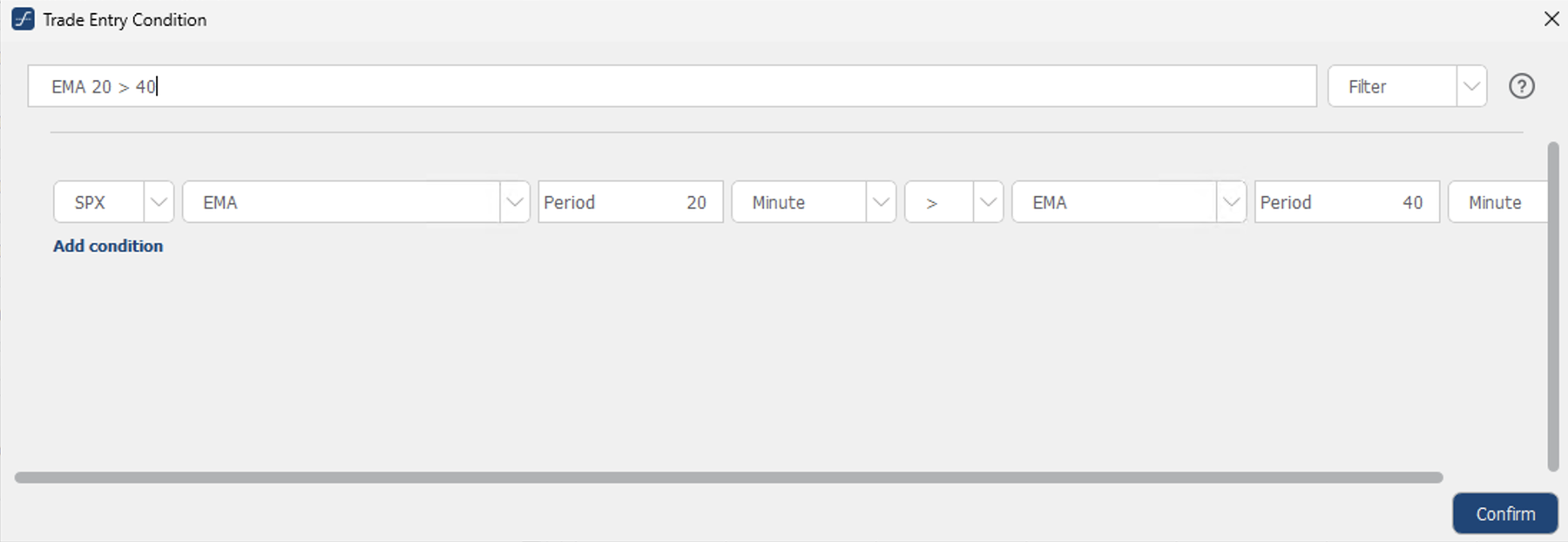
Entry conditions: Filter vs Trigger
A common false alarm — the two condition types behave differently:
| Type | Behaviour | Example |
|---|---|---|
| Filter | Checked once, at the entry time | "VIX < 40" at 10:00 is only evaluated at 10:00 |
| Trigger | A waiting window — fires when the condition crosses | "SPX crosses EMA 20" waits until it happens |
If an entry "didn't fire", confirm you used the type you meant. The type is the dropdown on the right of the condition editor:
Running paper and live in parallel
Doing both on one machine demands strict separation, or the two instances starve each other of market data:
- Separate IBKR users — one per instance.
- Separate market-data subscriptions — one per user.
- Different ports — 7496 live, 7497 paper.
- Separate OptionsApp sessions — one per account.
Keep OptionsApp updated
OptionsApp ships fixes and stability improvements on its own cadence. If you hit crashes or odd behaviour, update to the current release before anything else — several past issues were resolved that way. Their release notes live in their knowledge base.
Quick error matrix
| Error | Cause | Fix |
|---|---|---|
| Login conflict | Using the main username instead of the paper one | Look up the paper username in the Client Portal |
| No trades (paper) | Missing market data for the paper account | Subscribe to separate paper market data |
| Market: Unknown | Data connection dropped | Reconnect, then restart TWS + OptionsApp |
| Unstable connection | Timezone/port mismatch, parallel logins | Sync settings, one login only |
| Entry not triggered | Filter vs Trigger confused | Check the condition type (Filter = one-time) |
| "Trade could not be submitted" | Missing trading permissions | Enable them in the IBKR Client Portal |
| OptionsApp restarts itself repeatedly | Windows display/sleep timeout not set to Never | Set every power timeout to Never |
Pre-flight checklist
Before your first trade, tick every box:
- ☐ VPS locked down (the eight settings)
- ☐ IBKR paper account activated (Client Portal shows Active)
- ☐ Paper trading username looked up and noted
- ☐ Market-data subscriptions booked for the paper account (SPX/VIX/SPY)
- ☐ TWS API settings correct (Socket Clients on, Read-Only off, port 7497)
- ☐ TWS API precautions enabled (the Bypass options)
- ☐ TWS auto-restart configured (05:30 PM US/Eastern)
- ☐ Power timeouts all set to Never (why)
- ☐ Timezone synced (TWS = OptionsApp = US/Eastern)
- ☐ Live data verified (green/red in the watchlist, DATA panel green)
- ☐ OptionsApp connected (green status)
- ☐ Strategy activated, quantity > 0, entry time in the future
Where this comes from
The settings and fixes here are our own setup guide, built from the real connection problems traders reported in the community while wiring OptionsApp to IBKR. OptionsApp's own documentation — including the setup and TWS videos — lives at optionsapp.de/docs, and IBKR's is at interactivebrokers.com. When their tools change, their docs are the source of truth; this page is the field-tested short path.
Related pages
Get the weekly 0DTE research email
Research notes and product updates, straight to your inbox. Unsubscribe anytime.