
Export to tradeSteward (Beta)
Choose one full MEIC or two spreads, export RIC, and verify disabled tradeSteward bots with the required manual EMA and VIX setup.
Export to tradeSteward (Beta) turns the enabled strategies in a Cashflow Engine portfolio into a ZIP package that tradeSteward can import. The export popup lets you choose one full Multiple Entry Iron Condor (MEIC) or two separate spreads. Reverse Iron Condor (RIC) exports are also supported, with required manual target and Volatility Index (VIX) checks after import.
This guide covers broker and base-bot setup, the export popup, importing while disabled, and the controls that can allow bots to place real orders.
RIC with VIX is a manual-setup export. The TXT file does not apply the VIX filter. Its native tradeSteward setup also differs from the source rule at exactly −1%. Read the VIX instructions and boundary limitation before treating an imported bot as equivalent.
tradeSteward is external software — not part of Cashflow Engine. We do not build, own, or control it, and we earn no commission from this export. This workflow uses bots in your own tradeSteward account. It does not use Group Shared Bots and has no connection to any trading group that may appear in your tradeSteward navigation.
Keep every bot disabled until the final audit is complete. Importing a file creates bot settings. Enabling a bot and enabling tradeSteward's master autotrading control can allow it to place real orders in the selected brokerage account.
The workflow in one minute
- Link your brokerage account to tradeSteward.
- Create the disabled Base Settings Bots named in the ZIP's README file.
- Build and stress-test the portfolio in Cashflow Engine.
- Choose Export → Export to tradeSteward (Beta), select the MEIC layout if shown, review the setup instructions, and download the ZIP.
- Unzip it and import every TXT file separately with its listed base bot.
- Add the required exponential moving average (EMA) filter to every Multiple Entry Trend Following (METF) bot. For RIC, verify both long-leg targets, remove inherited exits, and configure VIX where the README requires it.
- Re-open and verify every bot while it remains disabled.
- Only then decide whether to enable an individual bot and tradeSteward's master autotrading control.
The setup in steps 1 and 2 is normally one-time work. Steps 3–8 are the repeat workflow for each portfolio export.
Before the first export: link your broker
tradeSteward bots execute in a brokerage account connected to tradeSteward; Cashflow Engine never receives that broker connection.
In tradeSteward:
- Open the account menu — the user icon in the top navigation.
- Choose Manage Linked Brokers.
- Click Add/Update Brokerage Link.
- Choose your broker and complete the authorization on the broker's own page.
- Back in tradeSteward, make sure the intended account's Enabled switch is on and its Link Status is healthy.
tradeSteward currently documents connections for Charles Schwab, tastytrade, Tradier, and TradeStation. Follow its current Link a Brokerage Account guide for broker-specific requirements. Its first-bot guide also explains the difference between tracking plans and plans that allow autotrading.
Before the first export: create local base bots
tradeSteward's importer combines two ingredients:
- the TXT file from Cashflow Engine, which defines the strategy-specific values; and
- an existing Base Settings Bot, which supplies any setting not present in the file.
This is why a brand-new account cannot import the first file immediately. It needs at least the exact disabled base bot named in that file's README entry. The bases are local to your account; no shared group bot is required.
Create the first base
Open Bots → Create Bot. For separate MEIC spreads, ratio and METF, create a valid, disabled SPX vertical-spread bot using this baseline. The import file sets the strategy-specific targets, width, quantity, entry time, stop and timed exit; surrounding behavior comes from the base. Full MEIC and RIC need the changes listed after the base-name table. In particular, a credit-spread base with a timed exit is not the correct RIC base.
| Section | Baseline setting |
|---|---|
| Bot Identification | Bot Name from the table below; your intended Trading Account; Strategy Assignment CFE Portfolio Imports (Beta); Bot Status: Disabled |
| Trading Strategy | Underlying Symbol SPX; Trade Template Custom; Number of Legs Two; Skip AM Expirations, Sell Bidless Longs After Exit, and Efficient Spreads enabled |
| Position Legs | One short option leg targeted by Premium and one same-side long leg targeted by Vertical Width; global Days to Expiration Exact 0 |
| Trade Entry | Bot Settings; Position Sizing Quantity; Entry Speed Fast; all weekdays; No Position; no randomization; no sequential delay; Single Entry |
| Trade Exit | Timed Exit enabled, 0 DTE at 3:55pm; Profit Target Disabled |
| Trade Stop | Percent Loss; Stop Controller Bot Algo; Stop Speed Fast; grouping Verticals; stop adjustments, trailing stop, and Launch on Stop off |
| Trade Conditions | Entry Filters off in the base; Max Trades Per Day 1; Check Closed First on; Open as Credit |
For a concrete placeholder, use one short call targeted at a $3.00 premium,
one long call at a 150-point Vertical Width, Quantity 1, a one-minute entry
window, and a 95% Percent Loss stop. The import file replaces those values.
Press Create Bot, leave it disabled, and re-open it once to make sure it
saved.
If CFE Portfolio Imports (Beta) does not exist in Strategy Assignment,
choose Create New Strategy and create it. This label is only for organizing
the imported bots and their reporting.
Use the exact base names
Only create the bases named in the current ZIP's README. Full MEIC, separate MEIC, unfiltered RIC and VIX-filtered RIC have different base names. Mixed portfolios can require more than one of them.
| Import batch | Exact Base Settings Bot name |
|---|---|
| MEIC — separate spreads or single-sided MEIC | CFE Base — MEIC (DISABLED) |
| MEIC — full iron condor | CFE Base — MEIC IC (DISABLED) |
| RIC — no VIX filter | CFE Base — RIC (DISABLED) |
| RIC — VIX overnight-down filter | CFE Base — RIC VIX (DISABLED) |
| Ratio | CFE Base — Ratio (DISABLED) |
| METF call, EMA 5 below 20 | CFE METF 5-20 C Below DISABLED |
| METF put, EMA 5 above 20 | CFE METF 5-20 P Above DISABLED |
| METF call, EMA 5 below 40 | CFE METF 5-40 C Below DISABLED |
| METF put, EMA 5 above 40 | CFE METF 5-40 P Above DISABLED |
| METF call, EMA 20 below 40 | CFE METF 20-40 C Below DISABLED |
| METF put, EMA 20 above 40 | CFE METF 20-40 P Above DISABLED |
Use Copy to New Bot to duplicate a suitable base, rename the copy exactly, then configure its structure before saving. Keep every copy disabled.
| Base family | Structure and entry | Exit and stop |
|---|---|---|
| Separate MEIC, ratio, METF | Two legs; short primary option and protective long wing; Credit | Percent Loss, Verticals, 0 DTE timed exit at 3:55pm |
| Full MEIC | Four legs; short inner PUT/CALL, long outer wings, all legs 1×; Credit | Same stop and timed exit; Verticals stops each side independently |
| RIC, with or without VIX | Four legs; long inner PUT/CALL, short outer wings, all legs 1×; Debit | Stop Loss Type: Disabled, Timed Exit off, Profit Target disabled; trailing stops and Launch on Stop off |
For RIC, leave entry filters off in the no-VIX variant. The VIX base name is a reminder of required setup, not a way to transfer the filter: tradeSteward does not copy Entry Filters from the base. Add and verify the EMA or VIX filter on each imported bot as described below. Re-open every base to verify its saved settings.
tradeSteward's own Create a Bot guide explains every part of the bot form.
Export the portfolio from Cashflow Engine
Open the finished portfolio in the Portfolio Builder. Check the contract quantity and enabled/disabled state of every strategy, because the execution export includes enabled strategies only.
Open Export and choose Export to tradeSteward (Beta).
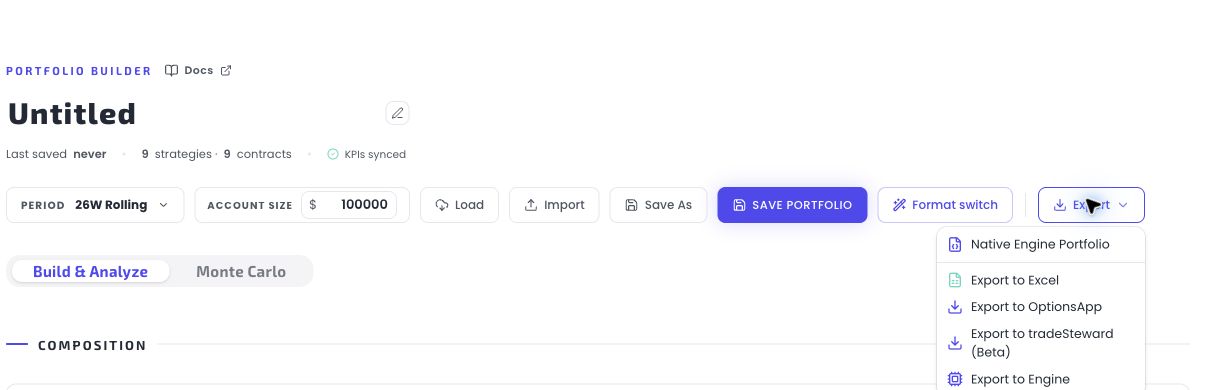
The Before you export window shows:
- the MEIC trade layout choice when a both-sided MEIC is present;
- how many bots and condition batches will be written;
- the exact Base Settings Bot for every batch;
- required METF EMA and RIC target/exit/VIX steps; and
- any strategies that cannot be represented and will be skipped.
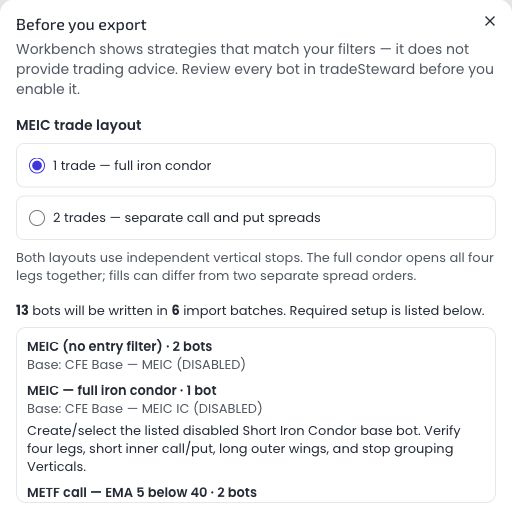
The example contains mixed strategies, so it still lists separate MEIC bots alongside the full-condor batch. Only both-sided MEIC strategies change layout. Scroll within the popup to read all batches, required setup and the acknowledgment before the Confirm & export ZIP button.
Read the skip list. A clean download does not mean that every portfolio row was converted. The current beta supports decodable MEIC, ratio, METF and RIC strategies. Unsupported strategies, including Long Strangle (LSTG), are listed and skipped; they do not block supported rows in the same portfolio.
The popup appears even if you previously acknowledged this data vintage. Changing the MEIC layout recalculates the preview and clears the current checkbox. Review the configuration, complete the acknowledgment when required, and choose Confirm & export ZIP. The downloaded package contains:
- one
..._README.txtmanifest; - one TXT file for each condition batch present in the portfolio; and
- no executable program — the files are plain text bot definitions.
Keep the README open during import. It is the source of truth for which file uses which base and which manual settings have to be added later.
MEIC: one full trade or two separate spreads
Under MEIC trade layout, choose the structure for each both-sided MEIC:
| Popup choice | Imported structure | Base |
|---|---|---|
| 1 trade — full iron condor | One four-leg short iron condor per MEIC | CFE Base — MEIC IC (DISABLED) |
| 2 trades — separate call and put spreads | One call credit-spread bot and one put credit-spread bot per MEIC | CFE Base — MEIC (DISABLED) |
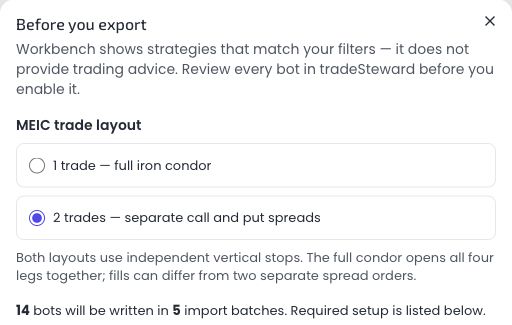
Two separate spreads is the default. Both layouts preserve the selected quantity and use independent Verticals stops. Choosing a full condor does not turn the stop into a single stop for the entire position.
For example, eight active both-sided MEIC strategies produce eight full-condor bots or sixteen spread bots. A quantity of two stays two contracts per leg; it is not halved when the bot is combined.
The full condor opens all four legs together. Two spread bots open the call and put sides separately, so fills can differ. Single-sided MEIC stays single-sided, and the choice does not combine ratio or METF strategies.
Why one portfolio becomes several files
tradeSteward's TXT importer cannot encode every Cashflow Engine condition. The export therefore separates strategies by condition so a wrong base or wrong EMA/VIX setup cannot silently spread across the whole portfolio.
- Both-sided MEIC uses the chosen full-condor or separate-spread layout. Single-sided MEIC remains one spread.
- Each ratio strategy becomes its large spread plus the smaller opposite-side spread at the exported quantity ratio.
- Each METF side goes into the file for its exact EMA pair and direction.
- Every bot receives a one-minute entry window. If it cannot fill in that window, it skips the day rather than entering late.
- RIC exports as one long iron condor. No-VIX and VIX-filtered variants go into separate batches, with per-bot manual setup in the README.
- Exported bots use 0 DTE SPX and the selected fixed quantity. MEIC, ratio and METF use premium/width targets, Percent Loss stops grouped by vertical and a 3:55pm timed exit. RIC uses premium or delta targets, no stop and no timed exit: it is intended to hold to expiration.
This is a one-way execution hand-off. Keep a Native Engine Portfolio file if you also need a portfolio that can be imported back into Cashflow Engine.
Import each TXT file separately
In tradeSteward, open Bots → Import Bots. Start with the first file listed in the README.
1. Select the listed base
Click Select Base Settings Bot, search for CFE, and choose the exact base
named next to that TXT file in the README. Do not substitute another condition's
base.
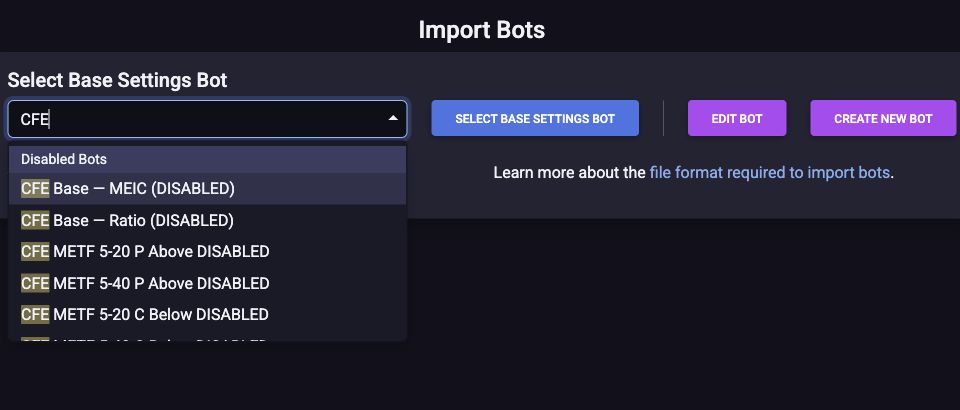
Click the blue Select Base Settings Bot button to open Template Upload.
2. Set the non-destructive import options
Use these values:
| Field | Value |
|---|---|
| Bot Settings Import File | The one TXT file paired with this base in the README |
| Bot Name Prepend | Leave empty |
| Strategy Assignment | CFE Portfolio Imports (Beta) |
| Disable Existing Bots | Don't disable any bots |
| Portfolio Assignment | Optional; leaving the imported bots outside a tradeSteward portfolio is valid |
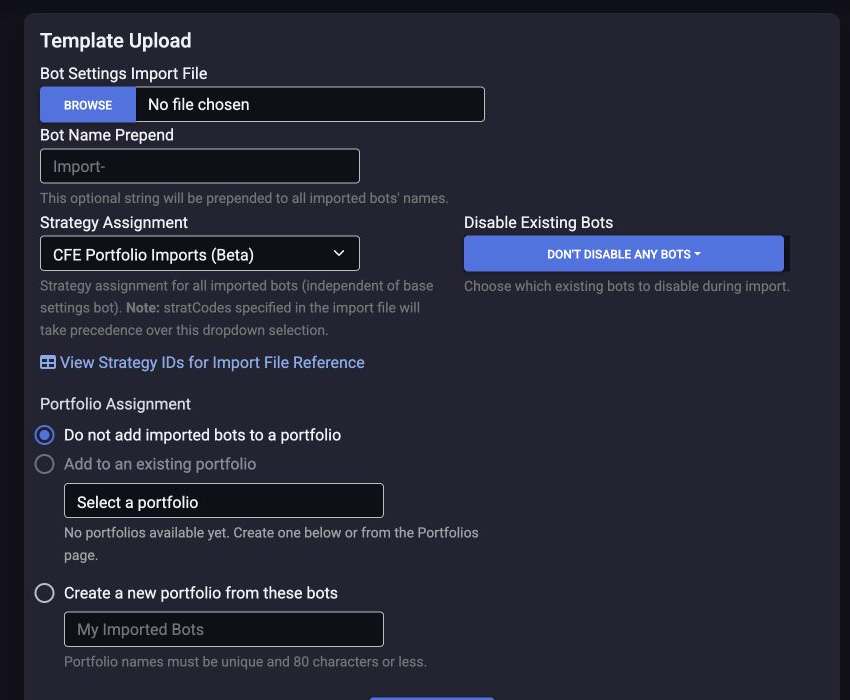
Leave Bot Name Prepend empty. tradeSteward rejects final bot names longer than 40 characters, and Cashflow Engine's strategy-based names already use that space.
Click Browse, choose the TXT file, then click Import Bots. Review any Import Errors. Do not use a bulk control to enable the new bots.
Repeat the complete process for every TXT file in the ZIP. tradeSteward's import guide states that one submission can create up to 50 bots. A batch above that limit must be split into separate submissions; the current beta exporter does not do that split automatically.
Confirm that every imported bot is disabled
Open Bots → View Bots and search for the imported strategy name. Check both the Enabled switch and the Status column. Every new bot should show Disabled.
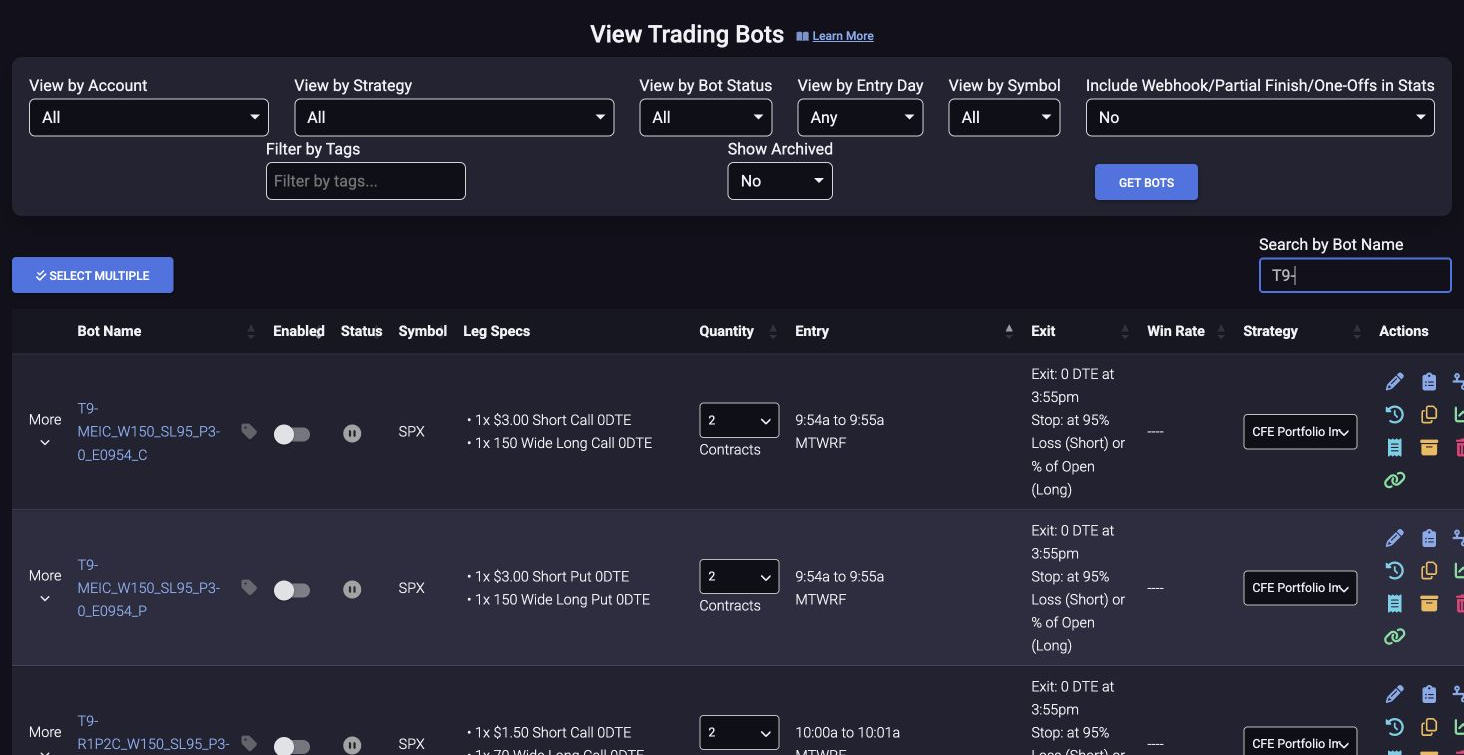
If any imported bot is enabled, disable it before editing or reviewing the batch.
Required for METF: add the EMA filter manually
Multiple Entry Trend Following (METF) has a required manual entry condition. The tradeSteward TXT format has no field for the required moving-average crossover, and live round-trip testing confirmed that Entry Filters are not inherited from the selected Base Settings Bot.
An imported METF bot is therefore not strategy-equivalent yet. Without the manual filter it can enter regardless of trend.
For every bot in a METF TXT batch:
- Open Edit Bot while Bot Status remains Disabled.
- Scroll to Trade Conditions and enable Entry Filters.
- Under Underlying Entry Filters, enable Open When Underlying Moving Average Crossover.
- Set Moving Average Type: Exponential.
- Set Period Type: Minute and Period Length: 1.
- Enter Periods in Moving Average 1 and Periods in Moving Average 2 exactly as the README states.
- Set Open Trade When to Above or Below exactly as the README states.
- Save with Update Bot.
- Re-open the bot and verify the saved values before moving to the next one.
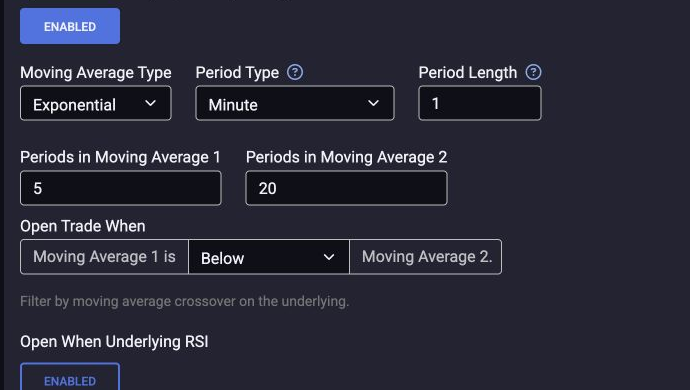
Use this matrix if you need to cross-check the README:
| METF bot side | MA 1 | MA 2 | Direction |
|---|---|---|---|
| 5/20 call | 5 | 20 | Below |
| 5/20 put | 5 | 20 | Above |
| 5/40 call | 5 | 40 | Below |
| 5/40 put | 5 | 40 | Above |
| 20/40 call | 20 | 40 | Below |
| 20/40 put | 20 | 40 | Above |
MEIC and ratio bots intentionally have no EMA entry filter.
Required for RIC: verify legs, targets and exits
RIC is a long iron condor, the reverse of the credit MEIC structure. The import creates one four-leg bot. Keep it disabled while checking this table.
| Setting | RIC requirement |
|---|---|
| PUT side | Long primary PUT; short PUT wing below it by the exported width |
| CALL side | Long primary CALL; short CALL wing above it by the exported width |
| Leg ratios | All four legs 1×; bot Quantity matches the Portfolio Builder |
| Premium targets | Dollar values on the two long legs, exactly as the README lists |
| Delta targets | Positive 0–100 scale: a 60-delta target is 60, not 0.6 |
| Opening value | Debit, not Credit |
| Stops | Stop Loss Type: Disabled; no trailing stop or Launch on Stop |
| Exits | Timed Exit off; Profit Target disabled; intended to hold to expiration |
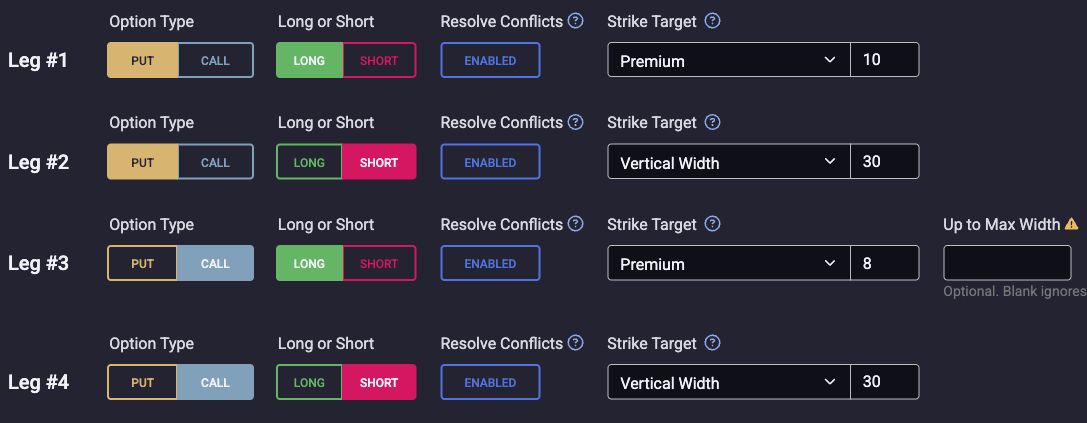
Different CALL and PUT targets require a manual correction. The TXT format has one shared entry target. If the README says CALL 8 and PUT 10, the import initially sets both to 8. Change the long PUT target to 10, save with Update Bot, and re-open to confirm. The same rule applies to unequal delta targets. The screenshot shows the saved result of this correction, not the initial import.
The import selects tradeSteward's Vertical Width targeting mode. Confirm both wing distances and directions; this is distinct from its separate Vertical Width-Exact mode. Review inherited base settings as well: omitting a timed-exit field in the RIC file is not a reason to assume that an unsuitable base's exit is disabled.
For RIC — no VIX filter, Entry Filters must be off. For the VIX variant, complete the following steps on every imported bot.
Required for VIX RIC: add the overnight filter manually
The source condition uses the VIX move from the previous close to today's opening value. It is not the intraday change or the current VIX level:
overnight VIX gap (%) = (opening VIX / previous close − 1) × 100
The strategy requires −1% ≤ overnight VIX gap < 0%. The TXT file cannot apply this condition, and the filter is not inherited from the base bot.
- Keep Bot Status: Disabled and open Edit Bot.
- Under Trade Conditions, enable Entry Filters.
- Set Opening Quote: First Tick.
- Under Volatility Index (VIX) Entry Filters, enable Open When Volatility Index (VIX) Overnight Gap.
- Turn on both bounds: Greater Than: −1 and Lower than: 0 (percent).
- Save with Update Bot, re-open and verify the filter, both bounds and First Tick. Repeat for each VIX-filtered RIC bot.
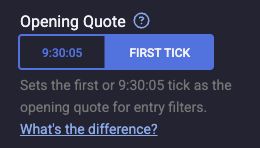

Boundary limitation: this native range is not an exact replica. tradeSteward says Greater Than −1, which excludes a gap of exactly −1%. The Cashflow Engine strategy includes exactly −1%. Exact boundary equivalence has not been established. Keep the bot disabled if exact matching is required; the native settings above must not be treated as fully equivalent. This limitation also appears in the export popup, TXT instructions and README.
What was verified in the real roundtrip
On September 8, 2026, we imported and re-opened disabled bots for full MEIC, both separate MEIC spreads, delta-targeted RIC and premium-targeted RIC. We compared saved quantities, legs, targets, entry windows, stops and exits. For the premium RIC, the asymmetric PUT correction and manual VIX settings persisted after saving and re-opening.
The roundtrip caught a delta-unit issue, which was corrected and re-imported: 60 now remains 60 in tradeSteward. It also confirmed that VIX entry filters do not transfer from the base. All test bots remained disabled and no automated trades were placed. This verifies saved settings, not live fills or exact VIX-boundary equivalence.
Audit every bot before enabling anything
Re-open every imported bot and compare it with the Cashflow Engine portfolio and README. A useful audit covers all of these fields:
- Bot Identification: correct bot name, correct Trading Account, correct Strategy Assignment, Bot Status disabled.
- Structure: SPX, 0 DTE; two legs for spreads, four for full MEIC or RIC. MEIC has short inner legs and long wings; RIC has long inner legs and short wings. Confirm the correct CALL/PUT side and 1× leg ratios.
- Strike targets: MEIC/ratio/METF primary short legs use Premium. RIC primary long legs use Premium or Delta; confirm each target separately, including manual PUT corrections. Verify both wing widths.
- Sizing: fixed Quantity matches the Portfolio Builder contract count. A ratio's small side can have a different quantity by design.
- Schedule: correct start time, one-minute end time, Monday through Friday.
- Exit: MEIC/ratio/METF use the 0 DTE 3:55pm Timed Exit. RIC has no timed exit. Profit Target is disabled.
- Stop: MEIC/ratio/METF Percent Loss matches the strategy, Stop Controller is Bot Algo, and grouping is Verticals. RIC stops, trailing stops and Launch on Stop are off.
- Conditions: METF has the exact exponential one-minute EMA condition. VIX RIC has the manually saved overnight bounds and First Tick, with the boundary limitation understood. Unfiltered RIC, MEIC and ratio have no entry filter. RIC opens as Debit; the credit strategies open as Credit.
tradeSteward's Test Run shows which strikes the current settings would pick without placing an order. Run Backtick sends the configuration to its historical tester. These checks do not replace the field-by-field audit, but they can expose a wrong side, premium, width, or quantity before live trading.
Start trading: understand the two switches
tradeSteward uses two separate live controls:
- the individual bot's Enabled state; and
- the account-wide master autotrading state shown in the Bots menu.
Both must be enabled before a bot can enter. The linked brokerage account must also be enabled and healthy, and the current day and time must be inside the bot's entry schedule.
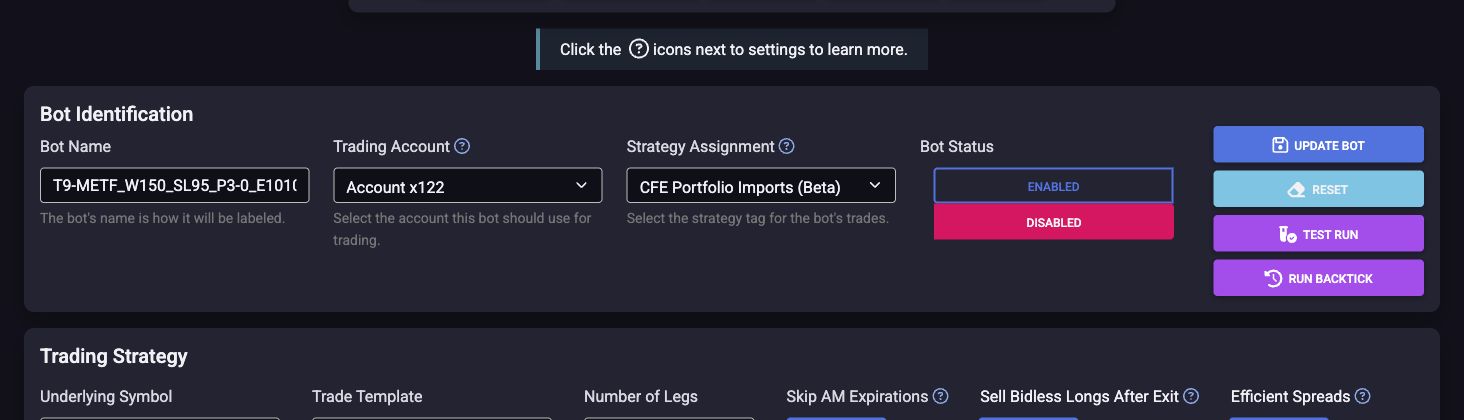
The screenshot deliberately remains Disabled. Changing Bot Status to Enabled and pressing Update Bot can arm that bot. Enabling master autotrading can arm every other enabled bot in the account too, so inspect the full View Bots list first — not only the imported batch.
The lowest-risk operational sequence is:
- keep master autotrading paused while reviewing;
- run Test Run and Backtick;
- verify the intended broker account, buying power, options permissions, market data, timezone, quantity, entry time, and every stop/exit;
- enable only the bot or bots you deliberately intend to run; and
- enable master autotrading only after confirming that no other enabled bot will trade unexpectedly.
Once both controls are on, the bot can place real orders at its next eligible entry window. tradeSteward's first-bot guide and Trading Dashboard guide cover the live status, activity feed, open positions, and master pause control. Pausing autotrading stops new entries; it does not by itself close positions that are already open.
What this beta cannot guarantee
- tradeSteward is a separate product and can change its importer or bot behavior independently.
- The TXT format cannot carry METF EMA or RIC VIX conditions. They must be added and verified manually after every import.
- VIX RIC's native strict −1% lower bound differs from the source's inclusive bound. Exact boundary parity has not been established.
- Unequal RIC long-leg targets require the manual PUT correction listed in the manifest.
- Full MEIC opens all four legs together; fills can differ from two separate spread orders even though both use vertical stops.
- A selected base bot does not transfer Entry Filters to imported bots.
- Unsupported or undecodable strategy families are skipped and listed rather than approximated.
- Final bot names are limited to 40 characters, so Bot Name Prepend must remain empty.
- tradeSteward limits one import submission to 50 bots; the current exporter does not automatically split a larger condition batch.
- A successful import proves that the file was accepted, not that the settings are economically suitable or identical to your intent.
- Backtested and live fills can differ. Cashflow Engine does not decide whether a user should enable live trading.
Repeat workflow for the next portfolio
After the one-time broker and base-bot setup, the normal loop is shorter:
- finish and stress-test the portfolio in Cashflow Engine;
- choose the MEIC layout and export the tradeSteward Beta ZIP;
- read the README and import each TXT with its exact base;
- complete every METF EMA and RIC target/exit/VIX setup step;
- audit every imported bot while disabled; and
- make a separate, deliberate decision about the individual and master live controls.
Related pages
Get the weekly 0DTE research email
Research notes and product updates, straight to your inbox. Unsubscribe anytime.